

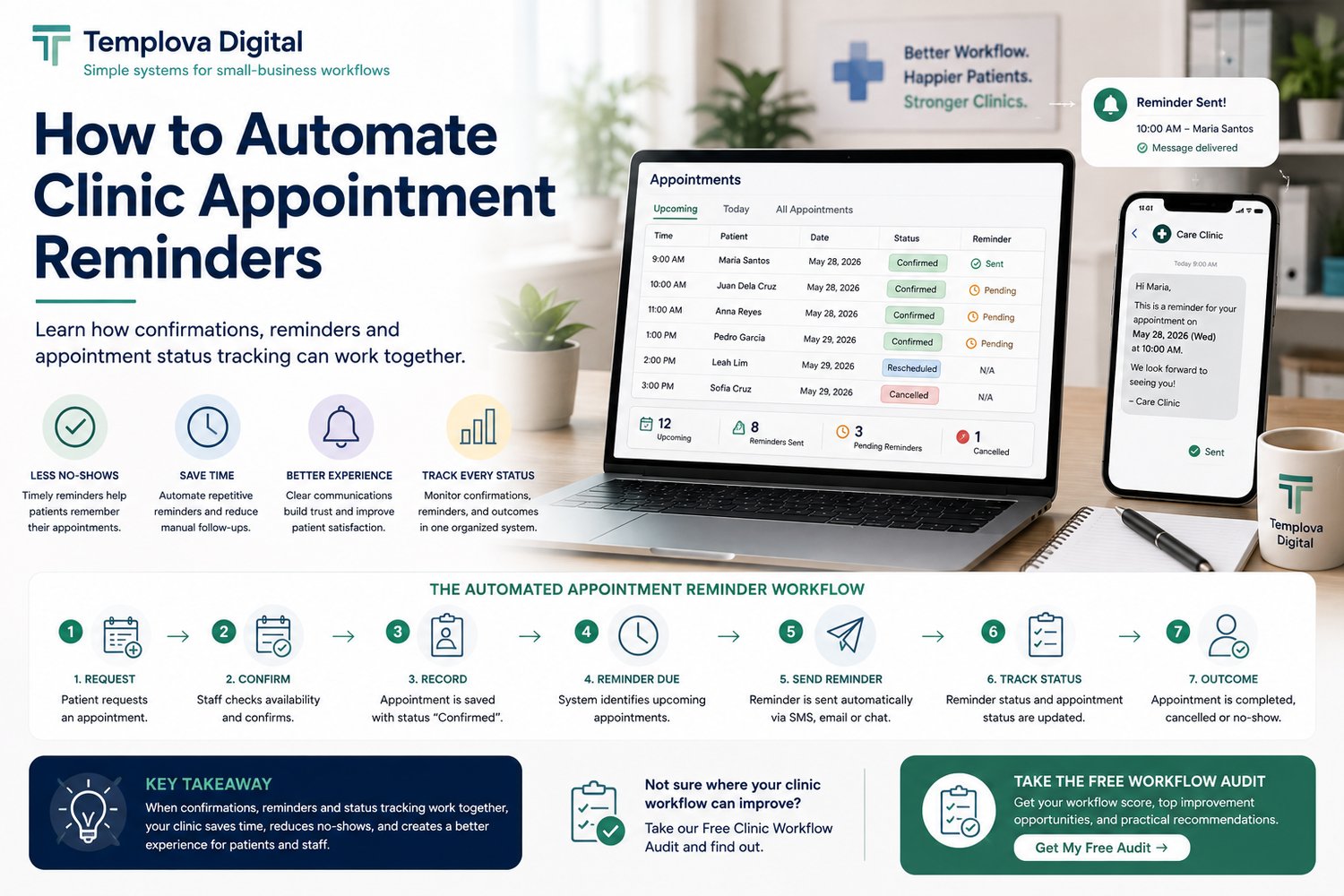
Learn how confirmations, reminders, and appointment status tracking can work together to create a smoother scheduling workflow.
Appointment reminders may seem like a small administrative task, but for a busy clinic, sending them one by one can consume a surprising amount of staff time.
A staff member may need to check the schedule, find the patient's contact information, write a message, send the reminder, update the appointment status, and remember to follow up when something changes.
As appointment volume grows, these small tasks can add up.
A better approach is to create a workflow where appointment confirmation, reminders, and status tracking work together.
In this guide, we'll explain how small clinics can build a simple appointment reminder workflow and where automation can help.
Why Appointment Reminders Matter
Patients can forget appointments.
Schedules can change.
Messages can get missed.
A consistent reminder process gives your clinic a structured way to communicate appointment information and reduce the amount of manual follow-up required from staff.
A basic workflow might look like:
Appointment Request
↓
Availability Check
↓
Appointment Confirmed
↓
Reminder Scheduled
↓
Reminder Sent
↓
Appointment Status Updated
↓
Completed / Cancelled / No-show
The important part isn't simply sending a reminder.
It's connecting the reminder to the appointment status.
What Is Appointment Reminder Automation?
Appointment reminder automation means using a system to perform some of the repetitive steps involved in reminding patients about upcoming appointments.
Instead of a staff member manually checking:
"Who needs a reminder today?"
the system can identify appointments that meet predefined conditions.
For example:
Appointment = Confirmed
Appointment Date = Tomorrow
Reminder = Not Sent
The workflow can then trigger the appropriate reminder process.
The exact automation will depend on the tools your clinic uses.
Start With the Workflow Before Automating It
One of the biggest mistakes small businesses make is trying to automate a process that isn't clearly defined.
Before introducing automation, answer:
When should a confirmation be sent?
Immediately after the appointment is accepted?
When should the reminder be sent?
One day before?
Several reminders at different intervals?
What happens if the patient cancels?
Should the reminder automatically stop?
What happens if the appointment is rescheduled?
Should the original reminder be removed?
What happens after the appointment?
Should the status change to completed or no-show?
These decisions should be made before you automate anything.
A Simple Clinic Reminder Workflow
Here's a practical example for a small clinic.
Step 1 — Appointment Request
A patient requests an appointment.
The clinic receives the request and checks availability.
↓
Step 2 — Appointment Recorded
The appointment is added to the clinic's scheduling system.
Important information might include:
- Appointment date
- Appointment time
- Assigned practitioner
- Appointment type
- Patient contact information
- Appointment status
↓
Step 3 — Appointment Confirmed
Once the clinic confirms the appointment, the status changes to:
Confirmed
This is important because you don't want reminder automation sending messages for appointments that haven't actually been accepted.
↓
Step 4 — Reminder Becomes Due
The system checks upcoming confirmed appointments.
For example:
Appointment tomorrow
Status = Confirmed
Reminder = Not Sent
This appointment is now eligible for a reminder.
↓
Step 5 — Reminder Sent
The appropriate reminder is sent through the communication channel your clinic has chosen.
Depending on your setup, this could involve:
- SMS
- Messaging platforms
- Other supported communication tools
↓
Step 6 — Update Reminder Status
The system records that the reminder has been sent.
For example:
Reminder Status: Sent
This helps prevent the same reminder from accidentally being sent repeatedly.
Appointment Status Is the Key
A reminder system becomes much more useful when it knows the current state of an appointment.
A simple set of statuses could be:
StatusMeaningPendingAppointment request hasn't been finalizedConfirmedAppointment has been acceptedReminder SentReminder has been sentRescheduledAppointment was movedCancelledAppointment will not proceedCompletedAppointment took placeNo-showPatient didn't attend
You don't necessarily need all of these as separate statuses.
The important thing is that your clinic has a consistent definition for each status.
Why Status Tracking Prevents Reminder Problems
Imagine this appointment:
Patient: Maria
Date: Tuesday
Time: 10:00 AM
Status: Confirmed
The system sends the reminder.
Then Maria calls and reschedules to Thursday.
If the original appointment isn't updated, the system may still think Tuesday's appointment is active.
That can result in:
- An incorrect reminder
- Duplicate reminders
- Confusing staff records
- Incorrect appointment reporting
A better workflow
Tuesday 10:00 AM
Status changes from:
Confirmed → Rescheduled
Then the new appointment becomes:
Thursday 10:00 AM → Confirmed
Now the reminder workflow can work with the updated appointment.
Use One Source of Truth
Your reminder system should work from the same appointment data your staff uses.
If your appointment information is spread across:
- Notebook
- Google Sheets
- Google Calendar
- Messenger
- Staff notes
automation becomes much harder.
You first need a reliable source of appointment information.
For a small clinic, that might be a structured Google Sheets-based system connected to other tools.
The technology can vary.
The principle doesn't:
Your automation should work from a reliable appointment schedule.
Example: Google Sheets-Based Reminder Workflow
For a small clinic already using Google Workspace, a structured Google Sheets workflow can serve as the foundation.
A simplified spreadsheet might contain:
AppointmentDateTimeStatusReminderPatient AAug 209:00 AMConfirmedPendingPatient BAug 2010:00 AMConfirmedSentPatient CAug 212:00 PMCancelledNot Required
Automation can then look for specific conditions.
For example:
If Status = Confirmed
AND appointment is within the reminder window
AND Reminder = Pending
→ trigger the reminder process.
After the reminder is successfully handled:
Reminder = Sent
This creates a simple feedback loop.
What Should Be Automated?
Not everything needs automation.
Start with repetitive tasks.
Good candidates include:
Appointment confirmations
When an appointment becomes confirmed, initiate the confirmation workflow.
Upcoming reminders
Identify appointments approaching their reminder window.
Reminder tracking
Record whether a reminder has already been sent.
Status updates
Help staff identify appointments requiring action.
Daily appointment summaries
Provide staff with an overview of upcoming appointments.
Follow-up lists
Create a list of appointments that require staff attention.
What Should Stay Under Staff Control?
Automation should support your clinic team, not remove necessary human oversight.
Staff should still be able to:
- Review appointments
- Correct scheduling mistakes
- Reschedule appointments
- Cancel appointments
- Handle unusual requests
- Verify important information
- Resolve communication problems
A good system automates routine actions, while staff remain responsible for exceptions and decisions.
Don't Automate a Broken Workflow
This is one of the most important lessons.
Suppose your clinic has no clear process for:
- Confirming appointments
- Cancelling appointments
- Rescheduling appointments
- Tracking no-shows
Adding automation won't necessarily fix the problem.
It may simply make the existing confusion happen faster.
A better sequence is:
1. Simplify
Remove unnecessary steps.
↓
2. Standardize
Create consistent procedures.
↓
3. Organize
Put the information into a reliable system.
↓
4. Automate
Automate repetitive, predictable tasks.
That's the approach we recommend at Templova Digital.
A Practical Reminder Schedule
Every clinic has different needs, so there isn't one universal reminder schedule.
Instead, decide what makes sense for your workflow.
For example:
At booking
Confirmation
Your appointment has been scheduled.
Before the appointment
Reminder
Your appointment is coming up.
After changes
Updated confirmation
Your appointment details have been updated.
The exact timing and communication method should be based on your clinic's policies, patient expectations, and the tools available to you.
Track More Than Just "Reminder Sent"
A useful system can distinguish between different situations.
For example:
Reminder Pending
The reminder hasn't been processed.
Reminder Sent
The system successfully initiated the reminder.
Appointment Changed
The appointment was modified after the reminder.
Cancelled
No further reminder is required.
This gives staff better visibility into what's happening.
Common Mistakes to Avoid
1. Sending reminders for cancelled appointments
Always make sure cancelled appointments are excluded from active reminder workflows.
2. Sending duplicate reminders
Track whether a reminder has already been processed.
3. Forgetting rescheduled appointments
When an appointment changes, make sure the reminder workflow follows the new appointment.
4. Using outdated contact information
Your workflow should have a clear process for maintaining contact details.
5. Automating before organizing
A messy scheduling system will usually produce messy automation.
6. Making the system too complicated
Small clinics don't necessarily need a huge automation stack.
Start with the repetitive task causing the biggest operational headache.
A Simple Automation Blueprint
Here's a practical model:
APPOINTMENT REQUEST
↓
CHECK AVAILABILITY
↓
RECORD APPOINTMENT
↓
CONFIRM APPOINTMENT
↓
STATUS?
↓
CONFIRMED
↓
REMINDER WINDOW
↓
SEND REMINDER
↓
UPDATE REMINDER STATUS
↓
APPOINTMENT
↓
COMPLETED / CANCELLED / RESCHEDULED / NO-SHOW
The important part is that each step has a clear purpose and status.
Where ClinicFlow Fits
At Templova Digital, we're building practical systems for small clinics that want to reduce manual administrative work without immediately moving to expensive or complex enterprise software.
ClinicFlow is designed around the everyday appointment workflow of small clinics, including scheduling, availability, appointment information, workflow tracking, and operational visibility.
The goal isn't to replace your entire business with complicated technology.
It's to create a clearer system for the work you're already doing.
Not Sure What Your Clinic Should Automate?
Before automating your appointment reminders, it helps to understand where your current workflow is actually losing time.
Our Free Clinic Workflow Audit evaluates several areas of your clinic workflow:
- Appointment scheduling
- Patient and appointment information
- Daily operations
- Visibility and reporting
- Automation opportunities
You'll receive a workflow score, identify your top improvement areas, and get practical recommendations for your next steps.
Take the Free Clinic Workflow Audit
[Get Your Free Workflow Audit →]
Free • Takes about 5 minutes • No patient information required
Final Thoughts
Appointment reminder automation doesn't have to be complicated.
The strongest systems usually begin with a simple workflow:
Record the appointment → Confirm it → Track its status → Send the appropriate reminder → Update the record.
Once that process is reliable, automation can take over repetitive parts of the workflow and give your staff more time to focus on patients and daily clinic operations.
Remember:
Don't automate chaos.
Simplify the workflow first, then automate the repetitive parts.